The app step by step · Chapter 21
Search
nexlore has two searches. The quick switcher gets you to a note in a second, and the search page looks through the whole text and shows you the lines where something was found.
Jump to any note with the quick switcher
You open it with Ctrl + K or the magnifier at the top. Type a few letters of a title or alias, and Enter opens the note.
| You type | You get |
|---|---|
bread | notes whose title or alias is or starts like that |
# and a word | headings of the open note, and Enter jumps there |
/ and a word | folders, and Enter opens the sidebar there |
| a name that does not exist | the row “create note”, also with Shift + Enter |
The last row, “All hits on the search page”, takes your search text along to the search page.
Find everything on the search page
You open the search page with Ctrl + Shift + F. Here nexlore searches the whole text, PDFs included, and shows you the lines with hits for every note along with their line numbers.
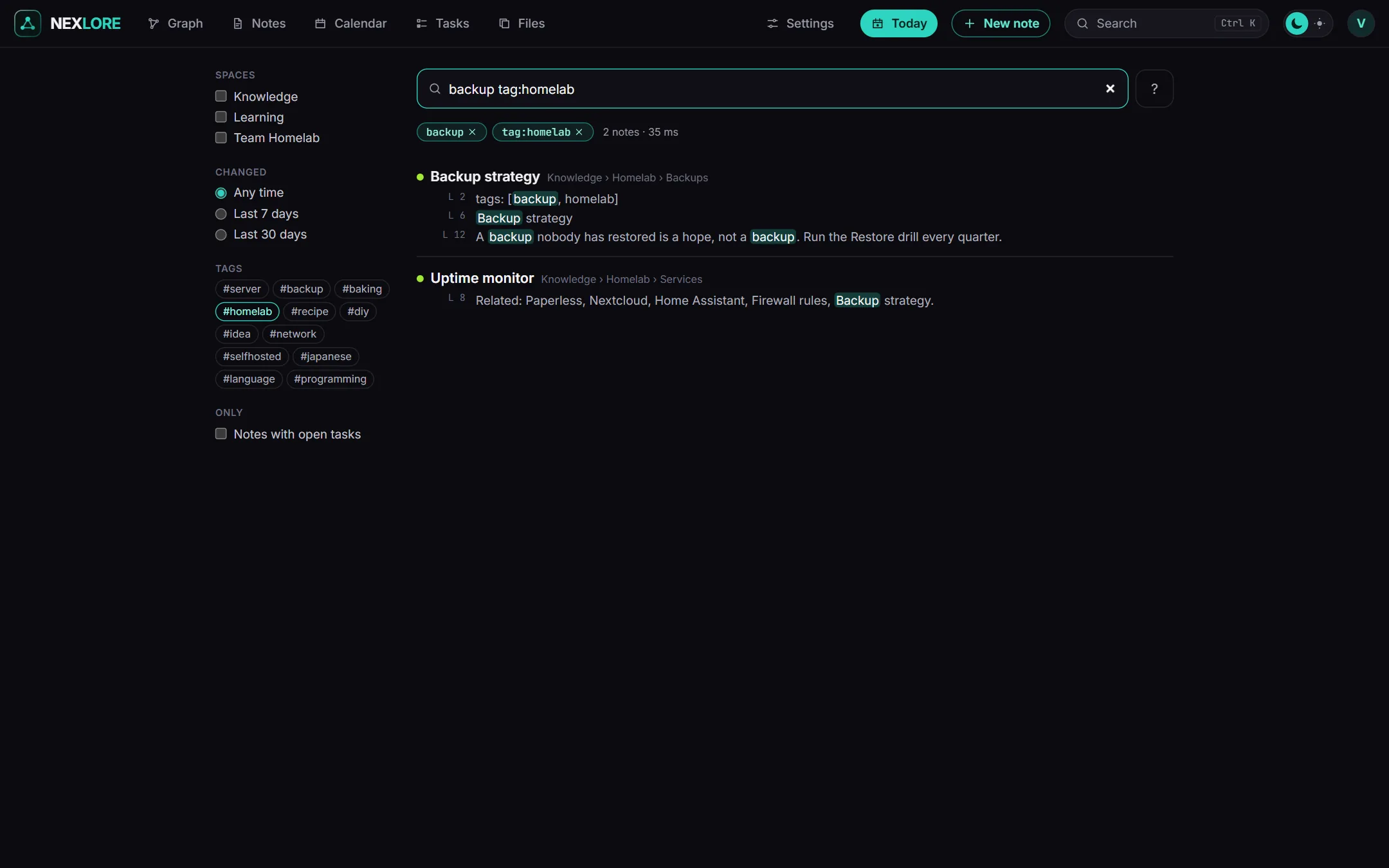
| You write | It finds |
|---|---|
sourdough bread | notes with both words, also as the start of a word |
"zfs pool" | exactly this phrase |
-test | without this word |
tag:garden | the tag and the tags below it |
path:Recipes | part of the folder or name |
file:plan | part of the file name |
space:Kitchen | only in this space |
task:call | open tasks; with a word only those it appears in |
[status], [status:open] | a property, and part of its value |
changed:7d | changed in the last 7 days, and there's also h for hours and w for weeks |
You can combine everything, for example tag:recipe [status:open] -cake changed:2w. The filters below the search field (Spaces, Changed, Only notes with open tasks) write these operators into the search text for you, and a click on the cross takes one out again.
Lore saysUpper and lower case don't matter, and neither do accents, so cafe finds “Café”. The search doesn't support OR, brackets or regular expressions.