The app step by step · Chapter 23
Tasks and calendar
How to write a task is explained in the chapter Tasks. This one is about the two tabs Tasks and Calendar, where nexlore collects them for you.
All your tasks at a glance
Tasks
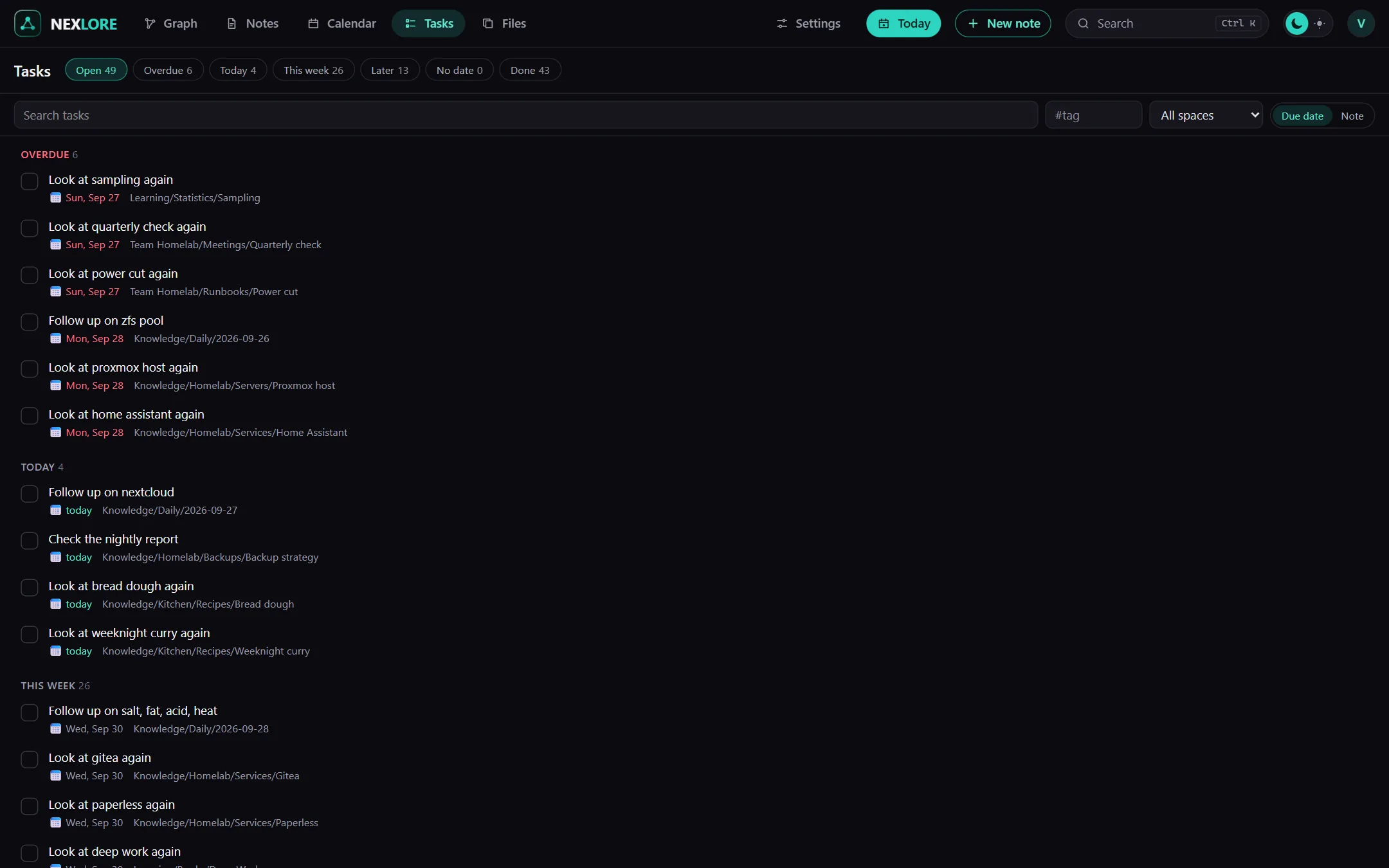
- Filters: You choose between Open, Overdue, Today, This week, Later, No date and Done, and each one shows how many tasks it holds.
- Narrowing down: You can narrow the list down by a word, a tag or a space.
- Grouping: The tasks are grouped by due date or by note, and your browser remembers which you chose.
- Ticking off: nexlore rewrites exactly that one line in the note. For a recurring task, the next one appears right above it.
The list holds tasks from every space you may read, and you can tick them off wherever you may write. If the note has changed elsewhere in the meantime, your tick lands in a conflict copy instead of overwriting anything.
Your month in the calendar
The Calendar tab shows you a whole month. Each day lists what's due, overdue or done, and next to it you'll find the list “Due this month”.
Calendar
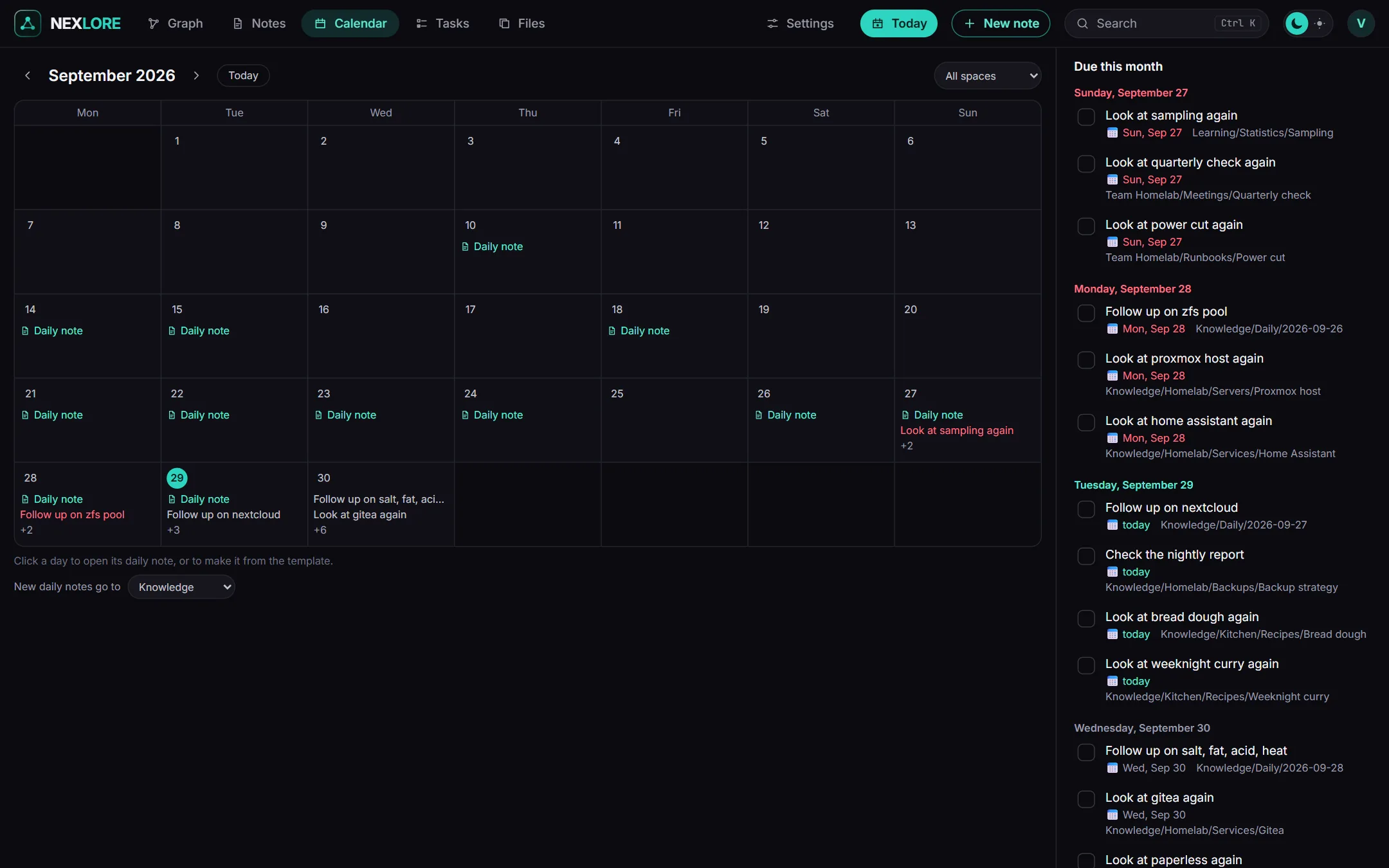
Lore saysYou choose which space new daily notes go to below the calendar. You can look at a space where you may only read, but you can't create a daily note there.