The app step by step · Chapter 18
The editor
A note first opens for reading. With Edit at the top of the note you open the editor. It shows the text the way it will look later and saves by itself shortly after you stop typing.
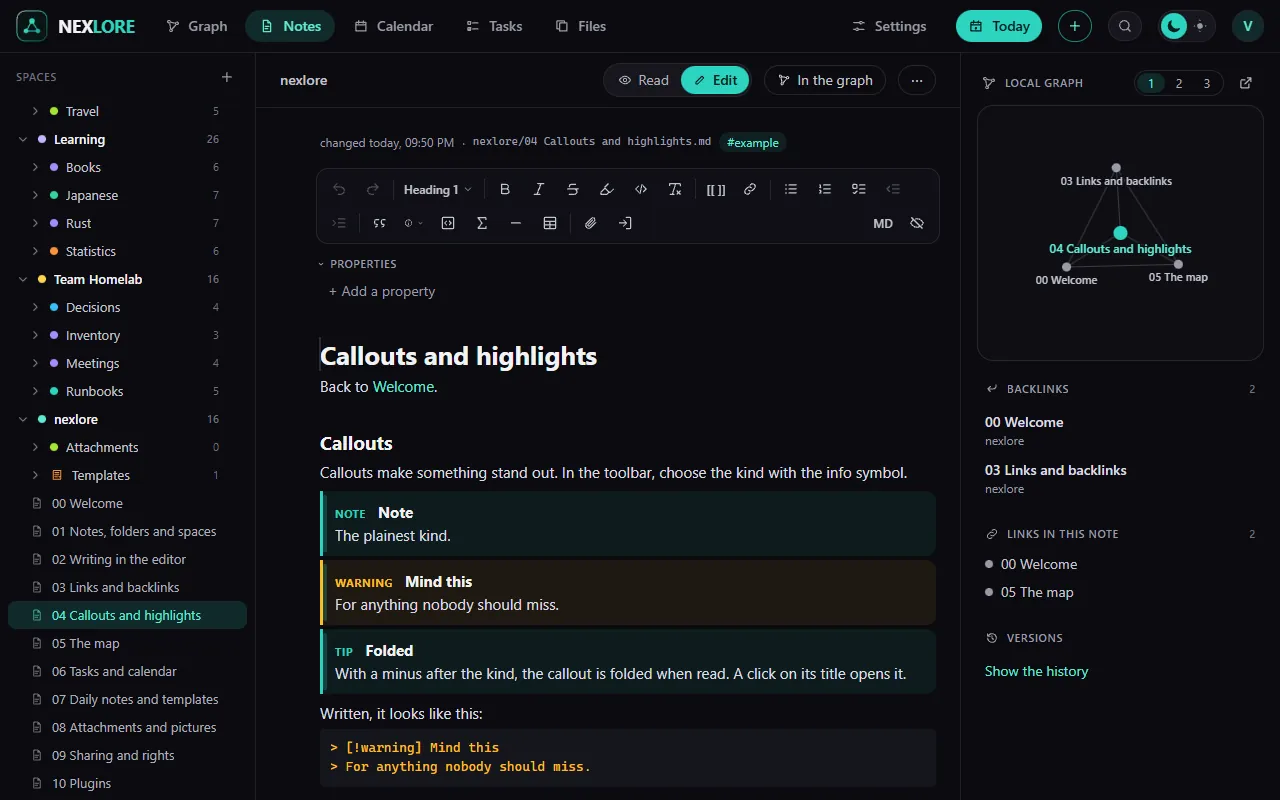
Three ways to shape your text
- The toolbar
In it you'll find paragraph type, bold, italic, strikethrough, highlight, code, links, lists, tasks, indent, quote, callout, code block, formula, divider, table, picture or file and embed a note. On the far right you can hide it. On a phone it sits as a narrow row above the keyboard.
- The slash
Type
/at the start of a line and then a word like “Table”, “Task list” or “Callout”. - Markdown directly
You can also just type
**bold**,# Headingor-for a list, and the editor turns it into what it means right away.
When you select text, a small bar appears above it. A right-click in the text opens a menu with format, paragraph and insert, and on a link “Open the note” is at the very top.
Moving paragraphs with the handle
When you move the mouse over a paragraph, a + and eight dots appear on its left. The + inserts a new block below. By the eight dots you drag the paragraph somewhere else, and a click on them selects the whole paragraph.
nexlore only changes what you change
When saving, nexlore rewrites only the paragraphs you edited. The rest of the file stays character for character as it was, blank lines and line endings included. If you want to see the plain text, the Markdown source shows you the file as it is, and Line numbers of the file in the toolbar tells you which line a paragraph is on.
| On top of the note it says | It means |
|---|---|
| Not saved yet | you are typing, and it will be saved in a moment |
| Saved | everything is in the file |
| Updated from elsewhere | someone changed the file elsewhere, and nexlore quietly loaded the new state |
| Name is editing this note right now | someone else is typing right now, so you can read, and edit once they are done |
Lore saysCtrl + P opens the command palette with everything nexlore can do right now, for example edit the note, switch between light and dark or jump to a page. Type a few letters and press Enter.
Make nexlore look the way you like
Under Settings, Look you pick a theme for your account, one of six free fonts for the interface, text and code, the font size and how wide the editor is. A single note becomes wide when you put cssclasses: wide into its properties.